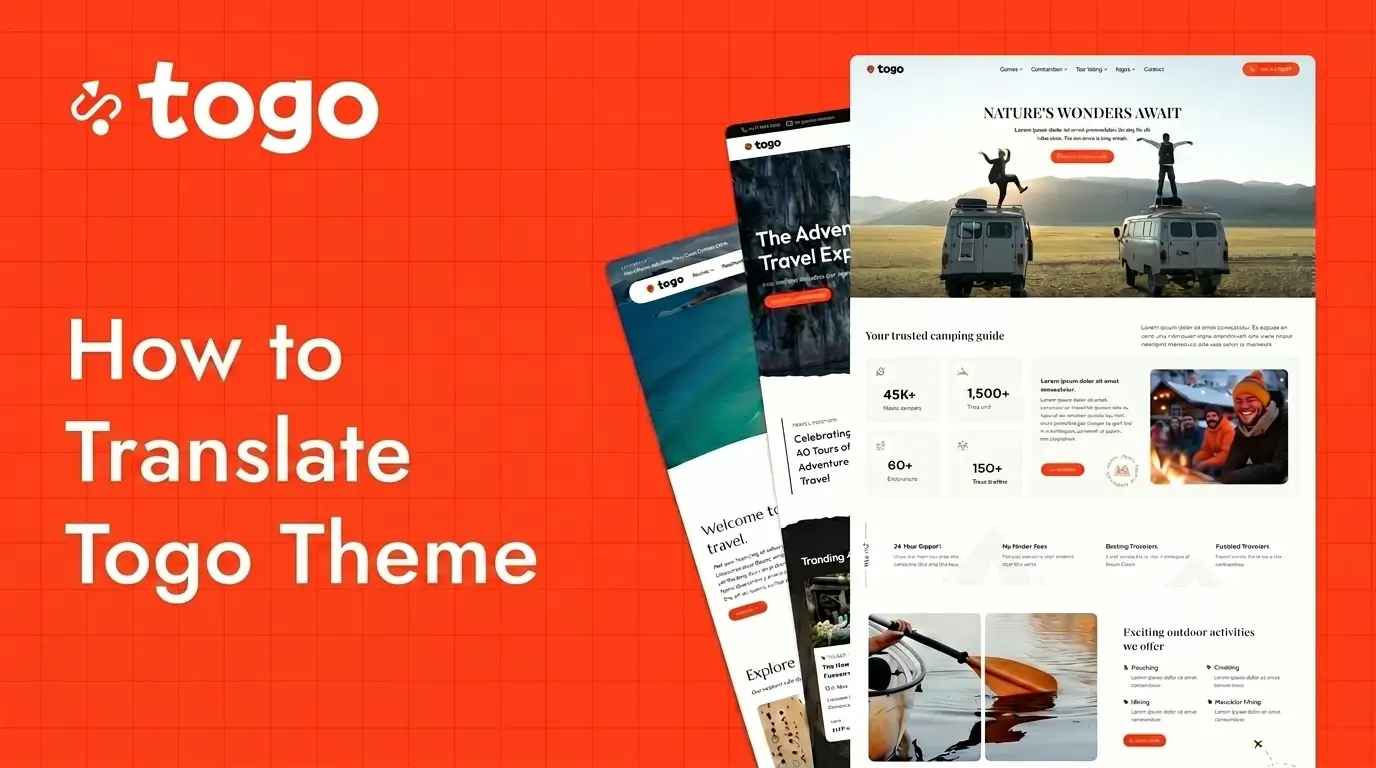
Creating a multilingual travel booking website is essential for improving user experience and reaching international customers. If you are using the Togo WordPress Theme, you can easily translate interface texts, booking labels, buttons, and system messages directly from the WordPress dashboard without editing any code.
Togo Theme is fully compatible with the popular Loco Translate plugin, making it simple to localize your travel marketplace website into multiple languages.
In this guide, you will learn how to translate and customize texts in the Togo WordPress Theme step by step.
Why Translate or Customize Texts in Togo Theme?
Every travel business has different branding requirements and target audiences. Customizing default texts helps create a more professional and localized booking experience.
You may want to edit texts such as:
- Book Now
- Search Tours
- Destination
- Checkout
- Login
- Register
- Trip Details
You can also translate your website into multiple languages including:
- Spanish
- French
- German
- Vietnamese
- Japanese
- Arabic
A multilingual travel website improves accessibility for international travelers and increases global reach.
Recommended Plugin: Loco Translate
The recommended plugin for translating the Togo WordPress Theme is Loco Translate.
Loco Translate allows you to:
- Translate WordPress themes and plugins
- Edit existing interface texts
- Create custom language files
- Manage localization directly from WordPress
- Customize labels without coding
It is one of the most widely used translation plugins for WordPress websites.
Step 1: Install the Loco Translate Plugin
From your WordPress dashboard:
- Go to Plugins → Add New
- Search for Loco Translate
- Click Install Now
- Activate the plugin


After activation, the translation management tools will appear inside your WordPress dashboard.
Step 2: Open Loco Translate
After installing the plugin:
- Navigate to Loco Translate
- Select either:
- Togo Theme
- Or the related Togo Framework plugin
Many texts are located inside the framework/plugin files instead of the theme itself, so you may need to check both locations.
Step 3: Create a New Language
To create translations:
- Click the New Language button
- Select your preferred language
- Choose the file location
- Save the translation file
This creates custom language files for your multilingual website.
Step 4: Search for the Text You Want to Edit
Inside the translation editor:
- Use the search field
- Enter the text string you want to change
Examples include:
- Book Now
- Search
- Trips
- Destination
- Checkout
Loco Translate will automatically locate the text string inside the theme or plugin files.
Step 5: Add Your Translation or Custom Text
After selecting the text string:
- Enter your translated text
- Or replace it with custom wording
Example Customizations
| Original Text | Custom Text |
|---|---|
| Book Now | Reserve Your Tour |
| Search Trips | Explore Destinations |
| Checkout | Complete Booking |
Custom wording helps personalize your travel booking platform and improve branding consistency.
Step 6: Save Your Changes
After editing translations:
- Click the Save button
- Refresh your website
- Check the updated texts on the frontend
Your translated or customized texts should now appear live on your website.
Important Tip: Translate Both Theme and Framework
Some interface texts may exist inside:
- The Togo Theme
- The Togo Framework plugin
If you cannot locate a specific text string, make sure to search inside both the theme and plugin translation files.
Automatic Translation Support
Loco Translate also supports automatic translation services using third-party APIs.
This allows you to:
- Translate large websites faster
- Generate machine translations
- Reduce manual translation work
Automatic translation providers can be configured directly inside the plugin settings.
Benefits of a Multilingual Travel Website
A multilingual travel booking website provides many advantages for tourism businesses and marketplaces.
Benefits include:
- Better international SEO
- Improved user experience
- Higher booking conversion rates
- Expanded global reach
- Better customer trust
- Localized booking experiences
For travel agencies targeting international travelers, multilingual support is extremely important.
Togo Theme Translation Compatibility
Togo Theme includes ongoing improvements for translation compatibility and localization support.
Recent updates include:
- Additional translation strings
- Updated POT language files
- Improved Loco Translate compatibility
- Enhanced multilingual support
These updates make it easier to translate and customize your travel website.
Best Use Cases
- Travel agency websites
- Tour booking marketplaces
- Destination websites
- Adventure travel platforms
- Visa booking websites
- Multi-vendor travel marketplaces
Final Thoughts
Translating and customizing texts in the Togo WordPress Theme is simple using the Loco Translate plugin.
Without coding knowledge, you can create a fully localized travel booking website by editing interface labels, booking texts, and multilingual content directly inside WordPress.
For travel agencies and tour operators serving international customers, translation and localization are essential for improving user experience and increasing global visibility.
Frequently Asked Questions
Can I translate Togo Theme without coding?
Yes. You can use the Loco Translate plugin to edit and translate texts directly from the WordPress dashboard.
Which plugin is recommended for translation?
The recommended plugin is Loco Translate.
Why can’t I find certain text strings?
Some texts may exist inside the Togo Framework plugin instead of the main theme files.
Does Togo support multilingual websites?
Yes. Togo Theme supports translation and localization features compatible with multilingual WordPress websites.
Can I customize booking labels and buttons?
Yes. You can edit booking buttons, search labels, checkout texts, and other interface elements using Loco Translate.